
Review Your Results
In the review tab, you can inspect the results of your completed timers and also export them in CSV format for use elsewhere.The Results View
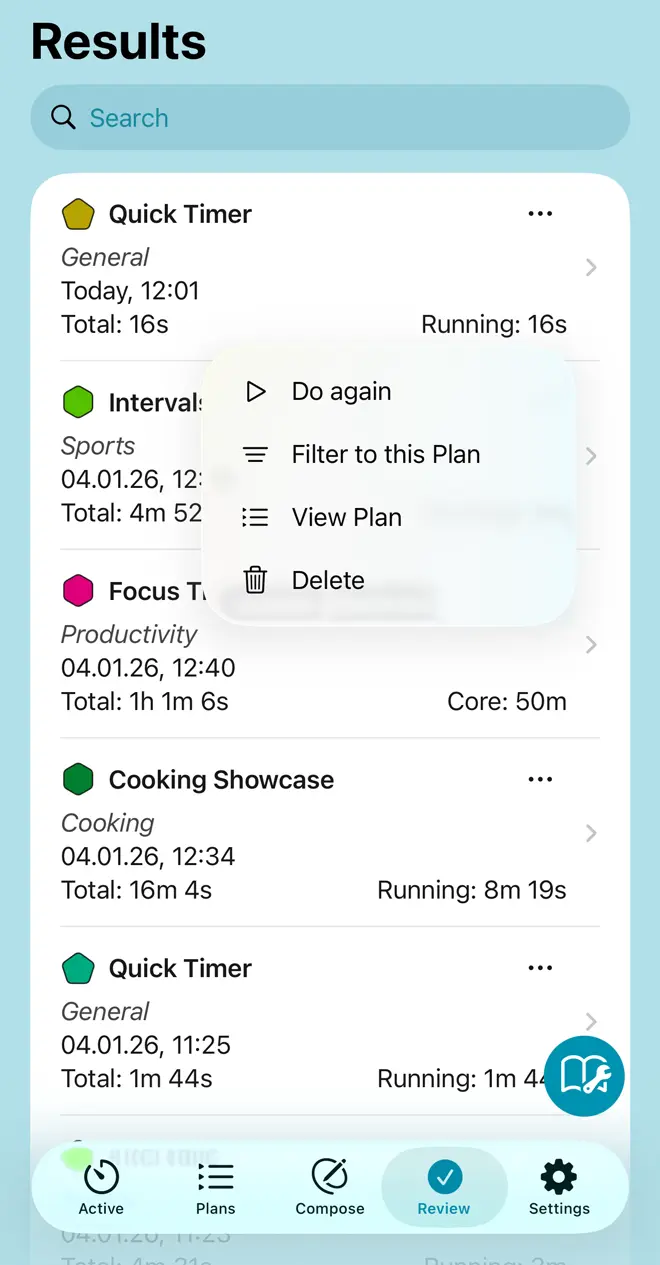
This view lists your completed timers (1), the most recent ones first. Entries show the names of your timers, their colour, category, and date of completion. You can also see the time spent on this timer. The total time, including pauses, waits, and resets, and the time spent running countdown timers or stopwatches. If that timer contains elements that you designated as core, the time spent running core elements is shown instead. Tapping brings up a detail view for this result.
Context Menu (2)The context menu gives you several options, also available in the detail view.
- Do again: restart this timer and change to the Active tab.
- Filter to this plan/Remove plan filter: filter the list of shown results to the timer plan used for this timer, or remove this filter if already set.
- View Plan: inspect this plan in the Plans tab.
- Delete: delete this result. The plan used for this timer isn’t affected.
In addition to filtering by timer plan, the search field gives you more selection options. You may enter a search text, and only matching results will be displayed. For this, the name of the timer and any instructions are used, including all elements contained within. Other than that, you can filter by category or select a time span.
The Summary and Export Button (4)This button in the bottom right corner brings up the Summary Results and Export view, where you can view the aggregate results for all your timers or the current selection and export the data.
TopResults Details
The Results View
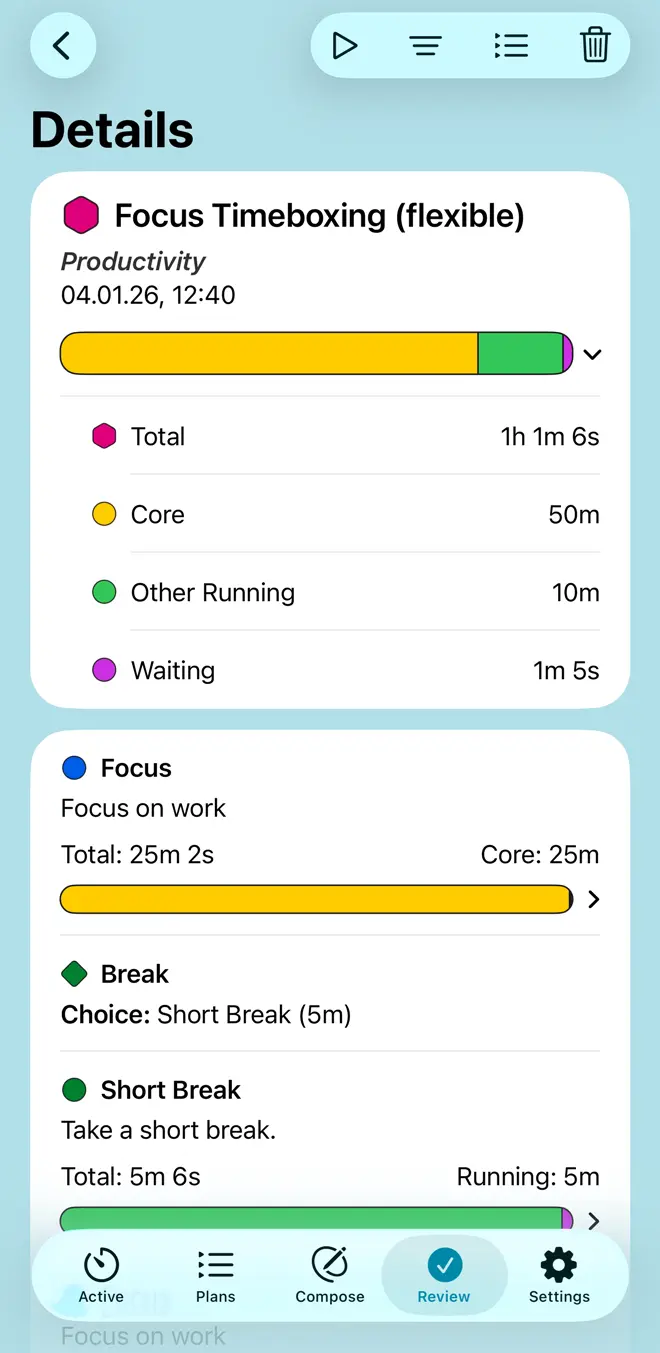
The Details view gives you the results for a single completed timer. Like in the overview, you see a header (1) displaying the timer’s name, category, colour, and completion date. There is also the total time spent on this timer, including interruptions, and the time actually spent running countdown and stopwatch timers. If the timer includes any elements considered core, the time spent on core elements is shown instead. It follows a bar chart (2) showing how time was used, which can be expanded for details. There are five categories considered:
- Core: time spent running countdown timers and stopwatches designated as core
- Other Running: time spent running ordinary, non-core timers and stopwatches
- Paused: time spent in a paused state
- Waiting: time spent waiting for input, like confirming a timer or making a choice
- Lost: time already spent on elements that are reset or skipped
Note that if you cancel a timer and opt to retain the results, all non-completed steps of that timer will be labeled as skipped.
Below this, you see a list of all individual steps (3) in that timer, with their name, color, and results shown in similar fashion. The decision made for choice elements is also shown
Top Bar Buttons (4)In the top bar, there are controls mirroring those in the menu for this entry. You can:
- restart this timer, switching to the Active tab
- You may inspect the plan used for this timer in the Plans tab.
- You can filter the results in the overview to the plan used for this timer (or remove the filter, if already active).
- And you can delete this result, not affecting the timer plan used for this timer.
Totals And Export
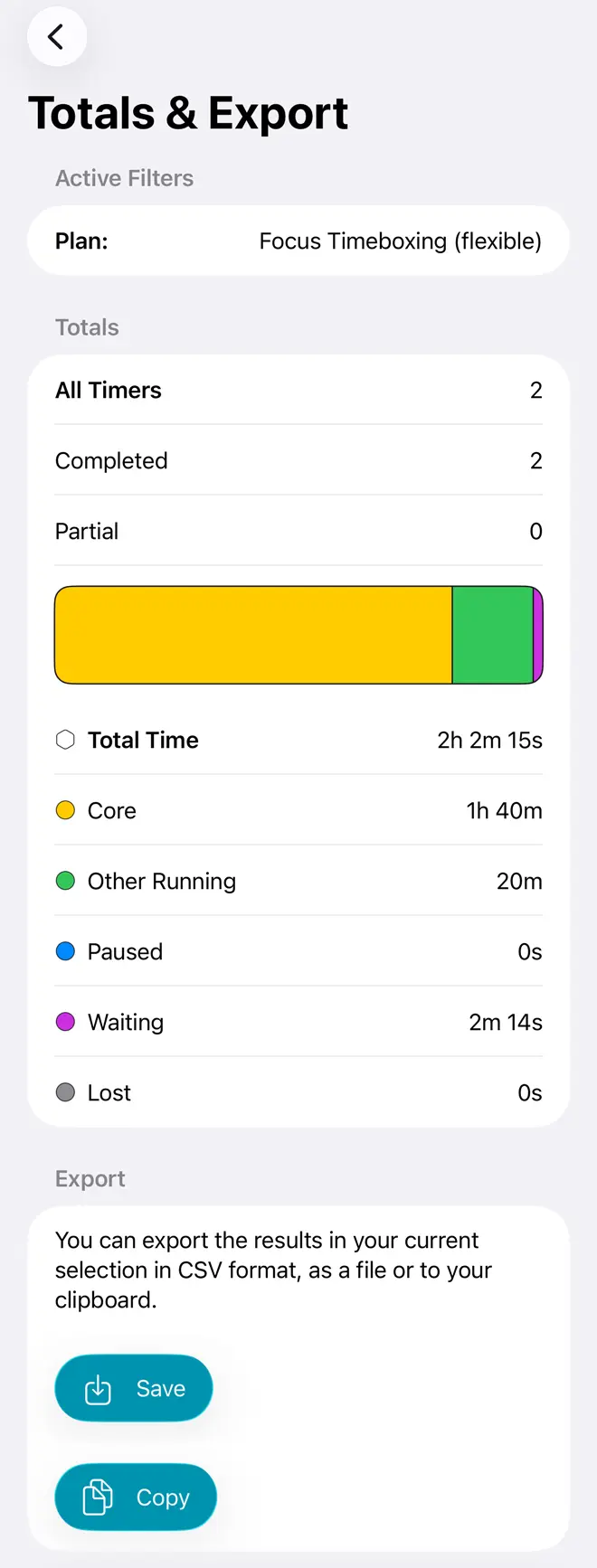
The totals and export view provides summary information on your timers and gives you the option to export results. The information shown (and data) exported is for all timer results in your current selection, applying any filters you have set. Used filters (1) are listed at the top.
It follows the sum of all done timers, and how many of those were completed or partially completed.
Below this is a bar chart (2) with details on how time was spent on these timers in summary. There are five categories considered:
- Core: time spent running countdown timers and stopwatches designated as core
- Other Running: time spent running ordinary, non-core timers and stopwatches
- Paused: time spent in a paused state
- Waiting: time spent waiting for input, like confirming a timer or making a choice
- Lost: time already spent on elements that are reset or skipped.
Finally, at the bottom there are buttons to export this data in CSV format: either to the clipboard or as a file.
Top