Key Concepts of Adhoro
Timers and Plans
Adhoro timers follow plans defined by you. So you first make a plan, the program for your timer. Then you run your timers from it. Your available timer plans are listed in Adhoro’s Plans tab. Once you launch a timer from them, the running timer is in the Timers tab. The Compose tab is where you create and edit timer plans. And once you have finished a timer, you can check out the results in the Review tab. The exception to this are Quick Timers: these are simple timers or stopwatches with no customization. You can launch these directly in the Timers tab.
TopElements of Adhoro Timers
All Adhoro timers consist of four basic building blocks. You can combine and configure these to craft the timer you want.
-
Sequence
Sequences are generally the backbone of your timer. They contain all other elements, and other sequences. When you run a timer, every element in a sequence is dealt with one after another.
-
Countdown
Countdowns are your standard timer elements. You set a time for them and get notified at the end.
-
Stopwatch
Stopwatches count up and measure how long something takes you. They run until completed by you. Stopwatches can be combined with other elements in a sequence for tasks with a variable duration.
-
Choice
Choices allow you to decide how to continue while a timer is running. Like sequences, choices can contain any Adhoro element. It could be complex sequences or just a simple countdown. Once a choice is reached during a timer, you get to pick from your defined options.
Alerts and Configuration
When a timer runs out, you usually want to notice. This is done in Adhoro by Alerts. Alerts consist of one or several audio signals that are played in sequence. There’s a range of sounds available for this, as well as text-to-speech and vibration. In countdown timers, you can also place Extra Alerts at any point during its runtime. So you could get text-to-speech instructions at the beginning, a gong when the timer is half done, or a 10 second warning in a boxing timer.
Besides alerts, there are some key configuration options for your timer elements. Countdown timers and sequences may require confirmation at the end. That is, you will have to press a button before the timer continues (or ends). Until then, the end alert will repeat, for up to 30 seconds. This is generally what you want for general or kitchen timers, not usually for interval exercise timers. Stopwatches and choices of course always require your interaction.
Then you can set your elements to repeat. You can set a number of repetitions when defining your plan, and also allow the option to ask for more when the timer is running.
Finally, you can define if an element should be counted as Core. This is for your own review purposes. A productivity timer may count work periods as core, but not breaks. Likewise a workout timer could count just the time spent on the actual exercise, but not rest periods.
TopCategories
Adhoro timers and timer plans currently have four categories: General, Productivity, Sports, and Cooking. We may add further categories in the future, including user-defined ones. If this is an important feature for you, don’t hesitate to give us a shout at info@adhoro.com.
Categories are used for filtering your timers in the Plans and Review tabs. They’re also used to set a number of defaults that you can customize in the Settings tab.
You can set if timers in a category should run in full-screen mode: by default, this is activated for the Sports category. And categories define some features for newly added elements when creating or editing timer plans. Whether countdown timers should wait for confirmation after running their course. And what alerts should be used as the default at the end of countdown timers. This enables you to compose timer plans quickly with features that make sense for the kind of timer you want.
Live Activities
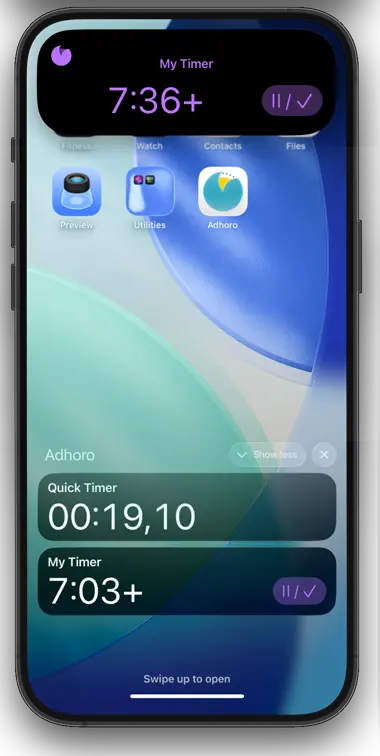
Composite image. Lock screen and dynamic island representations of Live Activities aren't shown simultaneously.
Live activities display information about your active timers, and allow you to interact with them, while Adhoro is in the background. Live Activities are shown on the lock screen (1) or the Dynamic Island (2) of your phone, depending on your device and its current state, and may also appear in the smart stack of a paired Apple Watch. They are turned on by default, and can be disabled in the Settings Tab. You also have control over Live Activities in your system settings and are given the option to deactivate them when first displayed. Note that you will have to re-enable Live Activities for Adhoro in your system settings first if you disabled them outside the app and want to turn them on again.
Because Live Activities are shown when Adhoro is in the background, and have limited available space, they are subject to some limitations. We try to make them as useful as possible for you to keep updated on and interact with your timers within those constraints and will keep improving them.
Tapping the Live Activity for a timer opens Adhoro and takes you to that timer, either to the timer view, or the result details if the timer has already been completed.
When a countdown timer element is active, Live Activities for Adhoro show the total known remaining time for the whole timer, with a plus sign if there are still possible changes. This is the case if there are still open choices or repeat options in your timer, or if there are stopwatch elements, which are open-ended. While running, a pause/accept button (3) is shown in the more expanded representations of the Live Activity. Use this to either pause a timer, or continue if the timer has signaled completion and requires your confirmation. When paused, this is replaced by a resume button.
If a stopwatch element is currently active, you see the elapsed time for this stopwatch instead.
In the case of an active choice requiring your input, there is a message to this effect: you can then tap the Live Activity to make your decision in the app.
For an optional repeat, you can decide whether to repeat that element in the Live Activity. However, there are no further details on the element to be repeated.
Finally, for a completed timer, there is a notice and you can tap the Live Activity to take you to the Review section. It will then disappear after a short while.
Top