
Plans: Inspect and Run Timer Plans
Timers in Adhoro follow timer plans. These are listed in the Plans tab. When you install Adhoro, you will already find some templates here that you can run and adapt. Entries show the name of that plan along with a symbol reflecting their root element in the plan’s color, the number of individual steps and the duration. Plus signs mean the duration is variable: this could be optional repeats, stopwatch elements, or choices. Tapping on any entry leads to an individual view for this timer plan.
The Plans Overview
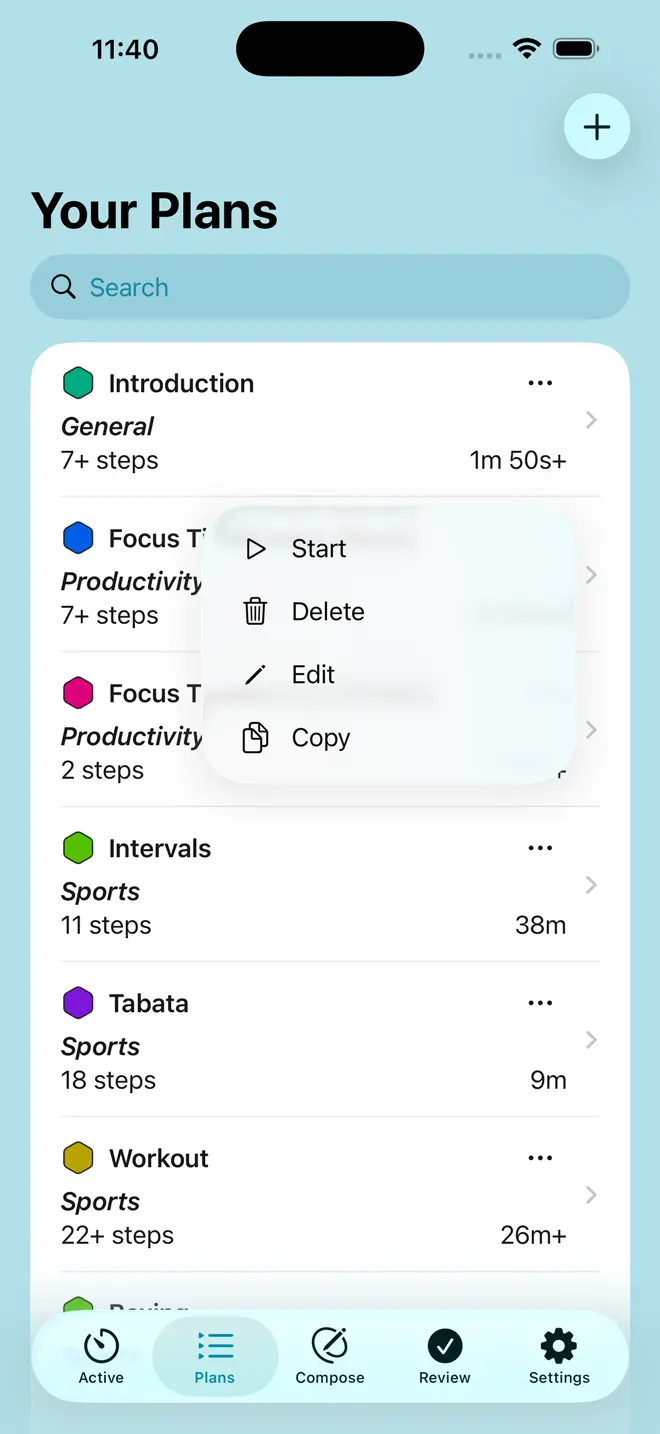
In the main screen for the Plans tab, you see a list of your available timer plans. You can filter these with the Search Field.
Context Menus: Run Plans, Edit or Copy (1)Each entry has a context menu, offering up to four options. You can run this plan here, switching to the timer tab. You may delete it, edit it in the Compose tab, or copy it. Copying is used for composing timers, where you could paste it as a new timer plan or an element.
The Search Field (2)The search field allows you to filter your plans. You can enter text: this will filter for plans that contain this text. The name of the timer and any instructions are used, including all elements contained within. You may also opt to select a category for filtering.
The Plus Button (3)Tap here to create a new timer plan. You can choose between the four main elements of Adhoro: sequences, countdowns, stopwatches, and choices. This will be at the root of your timer, so in most cases a sequence is what you want. Sequences can contain all elements and allow for the maximum flexibility. You may decide to opt for a countdown timer or stopwatch if, for example, you just want to repeat that one element. Choices, like sequences, can contain all elements. Starting with a choice will mean getting to decide right at the start of your timer. If you have copied a timer element, you can also opt to paste it to turn it into its own timer plan.
Next, you will be asked to pick a category. Right now, Adhoro has four categories: General, Productivity, Sport, and Cooking. Picking a category will set defaults for your new timer plan and any elements you may add to it: whether timers should usually be confirmed at the end, a default alert, and whether timers should run in full-screen mode. You can change these in the Settings tab for each category. You can change the category later, but those defaults will then only apply to new elements, not retroactively.
You will then switch to the Compose tab, where you can set up your new plan.
TopIndividual Timer Plans
Each Adhoro timer plan has one element at its root: sequence, countdown, stopwatch, or choice. Most commonly, it will be a sequence, as shown here. The information shown in this view will vary slightly depending on the type of the root element.
Top Bar Buttons: Run this Plan, Edit or Copy (1)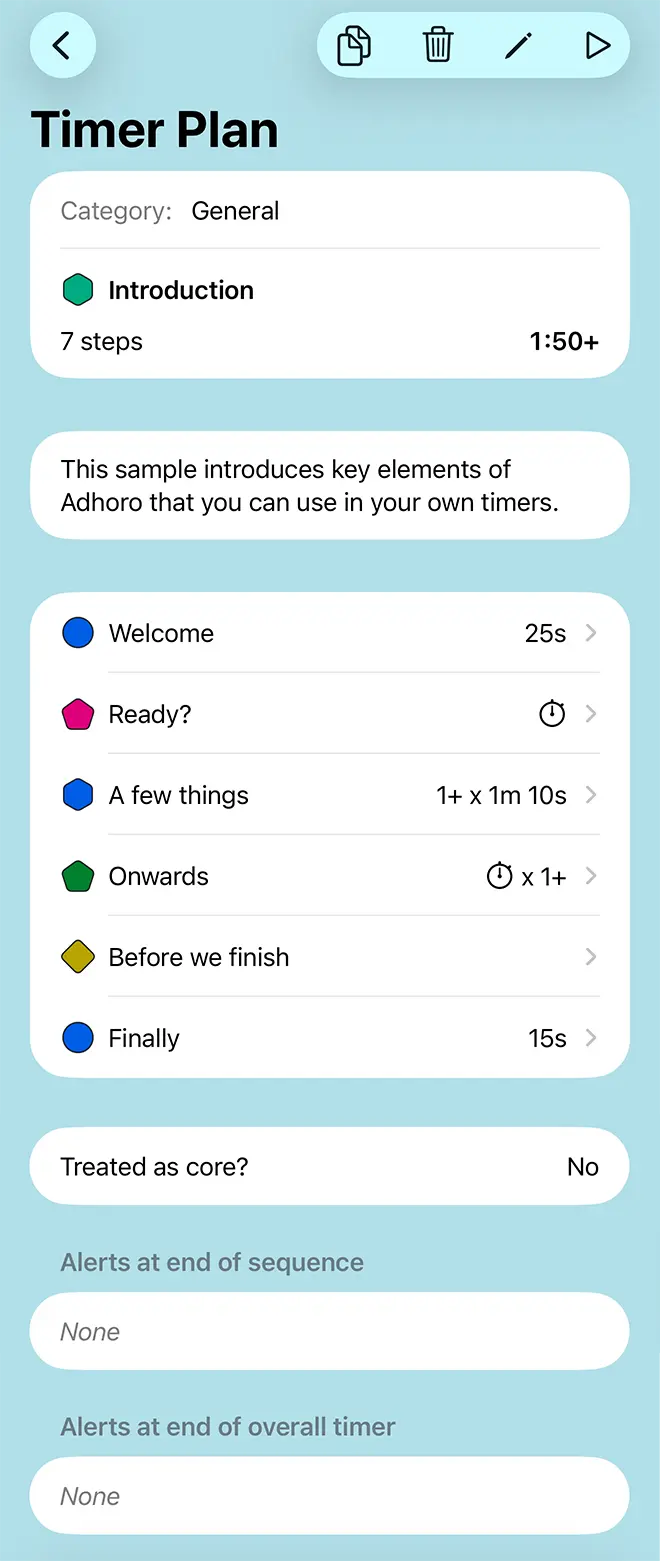
These replicate the options available from the context menu in the overview. You can run this plan, switching to the timer tab. You may delete it, edit it in the Compose tab, or copy it. Copying is used for composing timers, where you could paste it as a new timer plan or an element.
Overall Details (2)In the header section of this view, you will see some details of this timer plan: the category, its name and color, and a symbol reflecting the type of its root element. You can also see how many steps there are in this timer and how long it’s expected to take. Plus signs indicate variability, because of choices, stopwatch elements, or optional repeats. 2+ x 3 steps means the sequence has three steps, is repeated twice, and asks for more, optional repeats when the timer is running. Likewise, a duration of 3:00+ means it has a fixed duration of 3 minutes, but there are elements or choices that could make it longer.
Contained Elements (Sequence or Choice) (3)Next, any individual elements contained in the root element of this plan are listed: the steps of the sequence or available options for this choice. Each entry consists of the symbol for this element in its color, along with the name, repeats, and duration. As above, variable duration can arise because of contained stopwatches, optional repeats, or choices, and is indicated by a plus sign. Tapping on an entry shows details for this specific element.
Launches in full-screen modeIf shown, this indicates that a timer launched from this plan should go into full-screen mode from the start.
Treated as core? (4)Time spent on core elements is highlighted in results in the Review tab. If set here, for the overall timer, it will apply to all elements in the entire timer. So all elapsed time will be shown as core, though not time when the timer is paused or waiting for your input.
Alerts at end of root element (5)This lists the alerts that are played when your root element is done. Each can be an audio signal, text-to-speech and/or vibration. The alerts will play in sequence every time the root element completes: that is for every repetition.
Extra Alerts (Countdown)Here you see any extra alerts configured for this element. Extra alerts can be placed at any point during the duration of a countdown.. Like end alerts, this is a freely configurable sequence of audio/text-to-speech/vibration signals.
Alerts at end of overall timer (6)As above, this lists any alerts that are played once your entire timer has finished, including any repeats.
TopSingle Elements
You can also inspect the individual elements making up your timer plan. This allows you to look at their configuration, but also copy them for use in composing. The information shown will depend on the type, sequence, countdown, stopwatch, or choice.
Copy Button (1)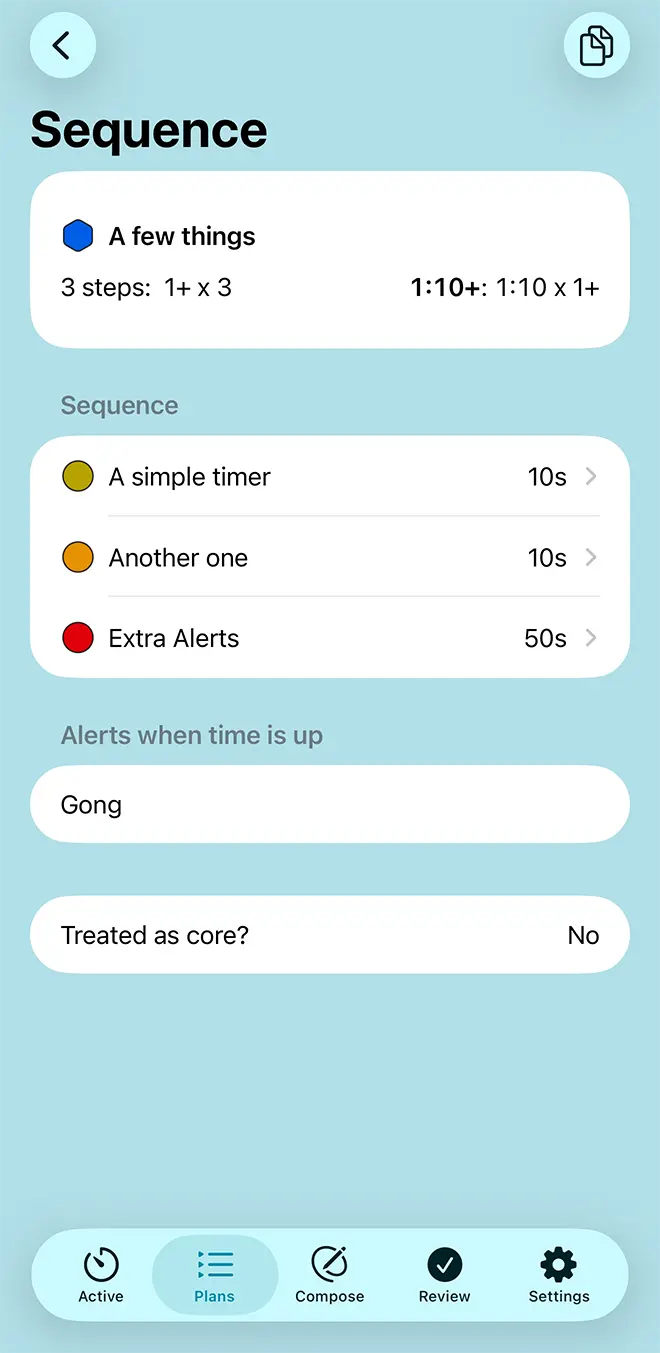
Use this to copy this element for use in the Compose tab.
Overall Details (2)In the header section are some details on this element: its name and color, and a symbol reflecting its type. You can also see how many steps it contains, if any, and how long it’s expected to take. Plus signs indicate variability, because of choices, stopwatch elements, or optional repeats. 2+ x 3 steps means a sequence has three steps, is repeated twice, and asks for more, optional repeats when the timer is running. Likewise, a duration of 3:00+ means it has a fixed duration of 3 minutes, but there are elements or choices that could make it longer.
Instructions (Countdown or Stopwatch)The instructions, what to do for this step.
Contained Elements (Sequence or Choice) (3)Next, any individual elements contained in this element are listed. Each entry consists of its type symbol in its color, along with the name, repeats, and duration. As above, variable duration can arise because of contained stopwatches, optional repeats, or choices, and is indicated by a plus sign. Tapping on an entry shows details for that specific element.
Alerts at end of element (4)This lists the alerts that are played when this element is done. Each can be an audio signal, text-to-speech and/or vibration. The alerts will play in sequence every time the element completes: that is for every repetition.
Extra Alerts (Countdown Timers)Here you see any extra alerts configured for this element. Extra alerts can be placed at any point during the duration of a countdown.. Like end alerts, this is a freely configurable sequence of audio/text-to-speech/vibration signals.
Treated as core? (5)Time spent on core elements is highlighted in results in the Review tab. This indicates that this element and, in the case of sequences, all its contents, should be regarded as core.
Top